
How to find them by hand
- List who has a licence. In the Microsoft 365 admin center, Billing → Licenses → Power BI Pro / Premium Per User, export the assigned users. Group-based licensing means checking the groups too.
- List who used Power BI. Export the Power BI activity log (the admin API
activityevents, orGet-PowerBIActivityEventin PowerShell) one day at a time. The service keeps about 30 days. - Compare. Anyone licensed with no viewing activity in the window is a candidate — after checking for people on leave or who only use Excel or embedded content.
Why it is easy to get wrong
- An empty activity export (wrong permissions, wrong dates) makes everyone look unused.
- Group-assigned licences hide behind group membership.
- 30 days is short: do it once a month, keep the history.
How Fabriscope does it
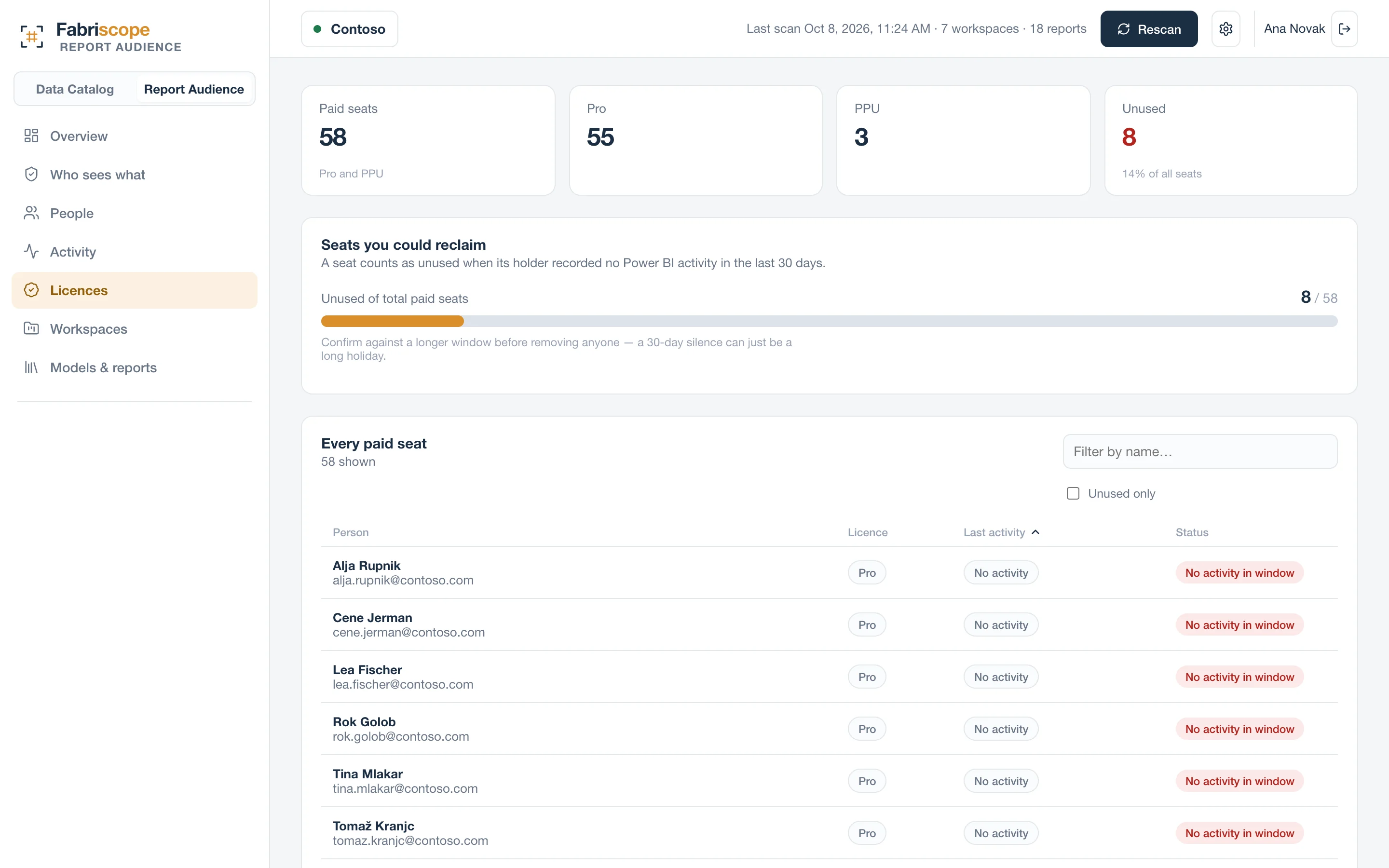
Report Audience reads assigned Pro and PPU licences through Microsoft Graph and the audit log through the admin API every scan, keeping a rolling 30 days. A seat is only called unused when there is activity data to compare against, so a missing export never turns into a list of everyone. You also see dormant reports and semantic models nobody uses — the other half of the clean-up.
Questions
Which permissions does this need?
Read-only admin APIs for the audit log, and the Microsoft Graph application permissions User.Read.All and Organization.Read.All for licences.
Can it reassign licences?
No. Fabriscope is read-only: it tells you which seats look unused; you decide and change them in Microsoft 365.